


Introduction
Photoshop has become one of the most recognized names in digital image editing, graphic design, photography, digital art, advertising, and creative production. Whether you are a complete beginner or an experienced designer, Photoshop provides a huge collection of tools that can help transform an ordinary image into a professional-looking visual.
From removing unwanted objects to creating complex compositions, Photoshop gives designers detailed control over individual elements of an image. Photoshop can be used for simple tasks such as cropping and resizing, but it can also be used for advanced projects involving layers, masks, blending modes, typography, color correction, retouching, and digital painting.
Today, Photoshop is used by photographers, graphic designers, social media creators, marketers, web designers, advertisers, artists, students, and businesses. Learning Photoshop can therefore become a valuable creative and professional skill.
This complete guide explores Photoshop from the basics to more advanced concepts. It explains how Photoshop works, which tools are important, how layers and masks work, how images can be retouched, how designs can be created, and how Photoshop can become part of a professional creative workflow.
What Is Photoshop and Why Is It Important?
What Is Photoshop?
Photoshop is a professional image-editing and graphic-design application developed by Adobe. The software is designed primarily for working with raster images, which means images are created using pixels.
Photoshop allows users to modify photographs, create graphics, manipulate colors, remove objects, combine multiple images, design advertisements, create social media posts, produce website graphics, and develop digital artwork.
One of the biggest strengths of Photoshop is its flexibility. The same Photoshop workspace can be used for a simple photograph adjustment or an extremely complicated digital composition.
For beginners, Photoshop may initially appear complicated because the interface contains many tools, panels, menus, and options. However, once the basic Photoshop workflow is understood, the software becomes much easier to use.
Why Is Photoshop So Popular?
Photoshop became popular because it provides detailed control over images. Instead of applying only automatic effects, Photoshop allows users to make precise changes.
For example, a photographer can use Photoshop to:
- Remove unwanted objects
- Improve exposure
- Adjust colors
- Correct skin imperfections
- Sharpen important details
- Replace backgrounds
- Create creative effects
- Prepare images for printing
- Resize photographs
- Create professional compositions
A graphic designer can use Photoshop to create:
- Posters
- Banners
- Advertisements
- Social media graphics
- YouTube thumbnails
- Website graphics
- Product advertisements
- Promotional designs
- Digital artwork
- Brand visuals
Photoshop is also important because it works well with other creative workflows. A designer may create a concept in Photoshop, develop a layout in another application, edit a video elsewhere, and use the final Photoshop assets across multiple platforms.
Photoshop for Beginners
A beginner does not need to learn every Photoshop feature immediately. The best approach is to understand the fundamentals first.
Important Photoshop fundamentals include:
- Understanding the workspace
- Opening and saving documents
- Understanding layers
- Using selections
- Using brushes
- Cropping images
- Adjusting colors
- Working with text
- Using masks
- Exporting images
Once these concepts become familiar, more advanced Photoshop techniques become easier.
Photoshop as a Professional Skill
Learning Photoshop can be useful for many creative careers. A person who understands Photoshop can work on photography, advertising, social media content, branding, marketing graphics, website visuals, product designs, and digital art.
Photoshop is therefore more than an image-editing application. It can become a complete creative tool for people who want to develop professional visual-design skills.
Understanding the Photoshop Interface
When Photoshop is opened for the first time, the interface can look overwhelming. Understanding the major sections of the Photoshop workspace makes the application much easier to navigate.
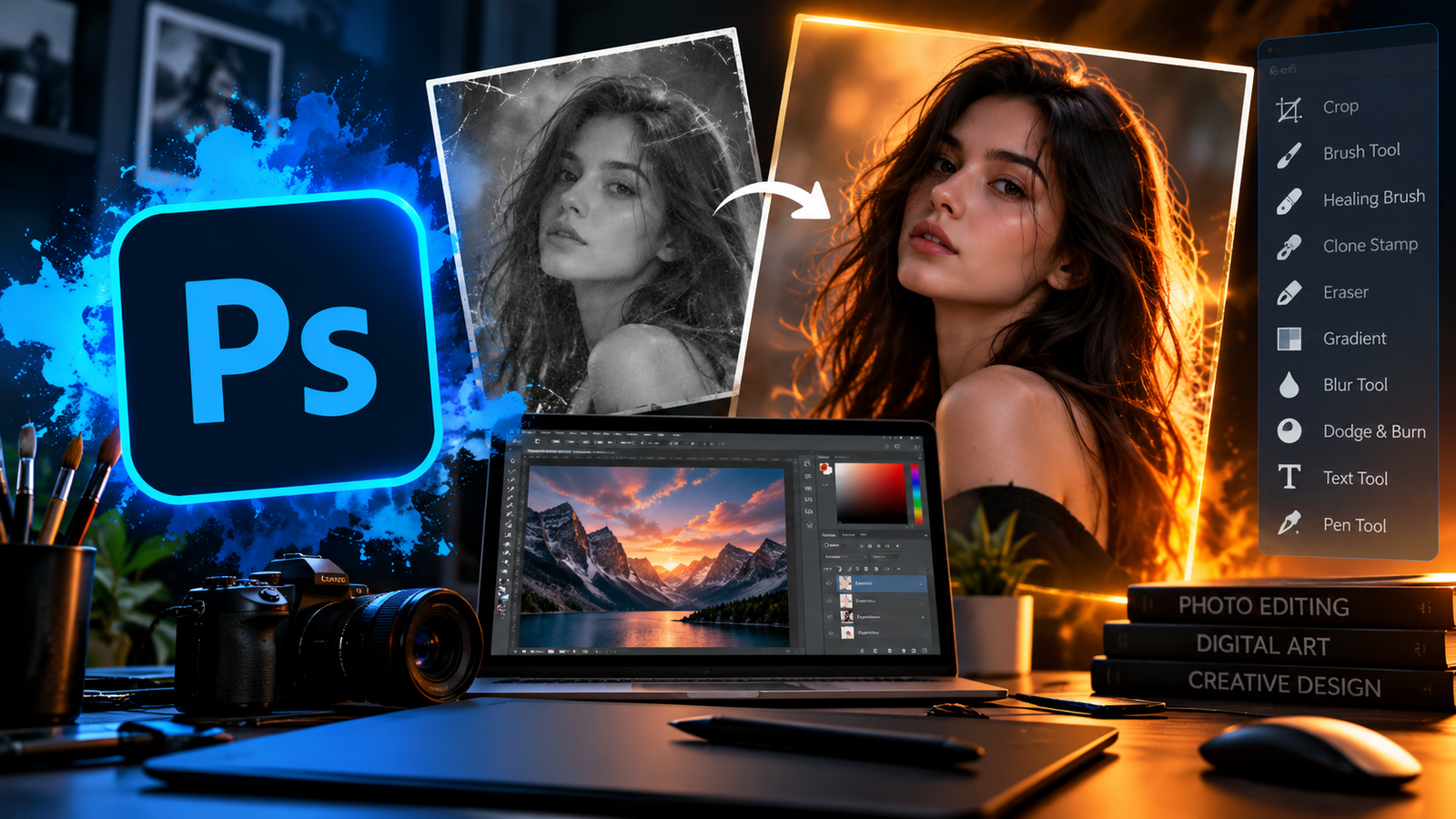
The Photoshop Toolbar
The toolbar contains many of the most commonly used Photoshop tools.
Some important tools include:
- Move Tool
- Marquee Tool
- Lasso Tool
- Object Selection Tool
- Quick Selection Tool
- Crop Tool
- Eyedropper Tool
- Brush Tool
- Clone Stamp Tool
- Healing Brush Tool
- Eraser Tool
- Gradient Tool
- Blur Tool
- Dodge Tool
- Burn Tool
- Pen Tool
- Type Tool
- Shape Tools
- Hand Tool
- Zoom Tool
Each Photoshop tool has a specific purpose.
The Move Tool allows elements to be repositioned. Selection tools help isolate portions of an image. The Brush Tool allows users to paint or create masks. The Crop Tool changes the composition of an image.
The Pen Tool is especially useful when precise paths or selections are required.
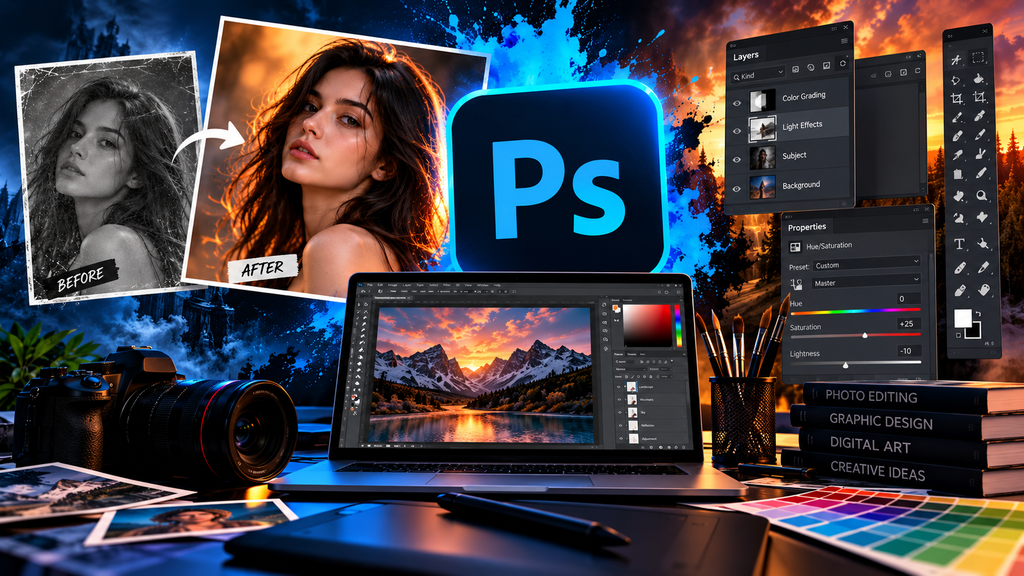
The Photoshop Layers Panel
The Layers panel is one of the most important areas of Photoshop.
Layers allow different elements to exist independently. For example, a Photoshop poster might contain:
- Background layer
- Image layer
- Text layer
- Logo layer
- Shadow layer
- Color adjustment layer
- Texture layer
Because these elements are separated, the designer can edit one element without necessarily changing everything else.
Understanding Photoshop layers is essential for almost every serious project.
Photoshop Properties and Adjustments
Photoshop provides panels that allow users to modify selected elements and images.
Adjustments can include:
- Brightness
- Contrast
- Exposure
- Color balance
- Hue
- Saturation
- Levels
- Curves
- Black and white
- Vibrance
These adjustments allow Photoshop users to control the appearance of images.
Photoshop Menus
The Photoshop menu system contains additional commands and features.
Important menu categories include:
- File
- Edit
- Image
- Layer
- Type
- Select
- Filter
- View
- Window
- Help
Beginners should become familiar with these menus because many Photoshop functions are accessible through them.
Photoshop Workspace Customization
Different users have different workflows. A photographer may prioritize editing panels, while a graphic designer may need typography and layers visible.
Photoshop allows the workspace to be customized according to the user’s requirements.
A clean Photoshop workspace can improve productivity because frequently used tools become easier to access.
Essential Photoshop Tools Every Beginner Should Learn
Learning Photoshop becomes easier when the most important tools are practiced individually.
Move Tool
The Move Tool is one of the simplest Photoshop tools. It allows users to move layers, objects, and selected elements around the canvas.
It is frequently used in Photoshop poster design, compositing, and layout work.
Crop Tool
The Crop Tool changes the visible composition of an image.
Cropping is useful when:
- Removing unnecessary areas
- Changing image proportions
- Preparing social media graphics
- Creating thumbnails
- Improving composition
A good crop can dramatically improve a Photoshop composition.
Selection Tools
Selections tell Photoshop which part of an image should be affected.
Common selection methods include:
- Rectangular selections
- Elliptical selections
- Lasso selections
- Object selections
- Quick selections
Selections are fundamental because Photoshop can perform many operations only on selected areas.
Brush Tool
The Brush Tool is one of the most versatile Photoshop tools.
It can be used for:
- Painting
- Masking
- Digital art
- Retouching
- Texture creation
- Lighting effects
- Color effects
Photoshop brushes can have different sizes, hardness levels, shapes, spacing, and opacity.
Eraser Tool
The Eraser Tool removes pixels from a layer. However, professional Photoshop workflows often use layer masks instead of permanently erasing important image information.
This creates a more flexible editing process.
Clone Stamp Tool
The Clone Stamp Tool copies pixels from one area to another.
It is useful for:
- Removing objects
- Cleaning backgrounds
- Repairing photographs
- Reconstructing damaged areas
- Retouching textures
A Photoshop user can sample a clean area and paint over an unwanted section.
Healing Tools
Photoshop includes healing tools designed for photographic corrections.
They can help remove:
- Small blemishes
- Dust
- Skin imperfections
- Minor distractions
- Unwanted marks
Healing tools are particularly useful in portrait Photoshop workflows.
Gradient Tool
Gradients create smooth transitions between colors.
Gradients can be used for:
- Backgrounds
- Lighting
- Color effects
- Poster designs
- Website graphics
- Text effects
A carefully designed Photoshop gradient can create depth and atmosphere.
Type Tool
Typography is an important part of graphic design.
The Type Tool allows Photoshop users to add headings, paragraphs, labels, advertisements, and other text elements.
Typography should always be readable and visually balanced.
Pen Tool
The Pen Tool is considered one of the most powerful Photoshop tools for creating precise paths.
It can be used for:
- Product cutouts
- Logo shapes
- Vector-like paths
- Precise selections
- Custom shapes
Mastering the Pen Tool can significantly improve Photoshop compositing skills.
Photoshop Layers, Masks and Blending Modes
Layers are at the heart of professional Photoshop editing.
Understanding Layers
Imagine a Photoshop project as a stack of transparent sheets. Each sheet can contain a different image or design element.
The top layer appears above the layers beneath it.
This makes it possible to create complex Photoshop compositions while keeping individual elements editable.
Background Layers
A background is usually the foundation of a Photoshop design.
It can be:
- A photograph
- A solid color
- A gradient
- A texture
- A pattern
- A digital illustration
Choosing the right background is important because it affects the entire visual appearance.
Adjustment Layers
Adjustment layers are extremely useful because they allow Photoshop users to modify an image without permanently changing the original pixels.
Common adjustment layers include:
- Brightness/Contrast
- Levels
- Curves
- Hue/Saturation
- Color Balance
- Black & White
- Selective Color
Using adjustment layers is a professional Photoshop habit because it keeps editing flexible.
Layer Masks
Layer masks allow Photoshop users to hide or reveal portions of a layer.
Instead of deleting pixels, a mask controls their visibility.
White generally reveals content while black hides it.
This simple concept becomes extremely powerful when creating Photoshop composites.
For example, a designer can place a person on a new background and use a mask to blend the subject into the scene.
Blending Modes
Blending modes control how one Photoshop layer interacts with another.
Some commonly used blending modes include:
- Multiply
- Screen
- Overlay
- Soft Light
- Hard Light
- Color
- Luminosity
Blending modes can be used for lighting, shadows, textures, color effects, and creative compositions.
Photoshop Smart Objects
Smart Objects provide another important Photoshop workflow.
They allow certain content to remain editable and can help preserve the original characteristics of placed assets.
Smart Objects are especially useful when repeatedly transforming images or using reusable design elements.
Organizing Photoshop Projects
Large Photoshop files can contain dozens or even hundreds of layers.
Good organization becomes essential.
Useful practices include:
- Naming layers
- Creating layer groups
- Using consistent naming
- Keeping related elements together
- Removing unnecessary layers
- Maintaining editable source files
A well-organized Photoshop file is easier to edit and easier to hand over to another designer.
Photoshop Photo Editing and Retouching
Photo editing is one of the most popular uses of Photoshop.
Basic Photo Correction
Before applying creative effects, a Photoshop editor should usually correct basic image problems.
Important areas include:
- Exposure
- Contrast
- Highlights
- Shadows
- White balance
- Saturation
- Sharpness
Good editing should improve the photograph without making it look unnatural.
Photoshop Skin Retouching
Portrait retouching is another common Photoshop application.
A professional retouching workflow may include:
- Removing temporary blemishes
- Correcting uneven areas
- Improving lighting
- Balancing skin tones
- Enhancing eyes
- Refining hair
- Adjusting contrast
The goal should be to maintain natural skin texture rather than creating an unrealistic plastic appearance.
Removing Unwanted Objects
Photoshop provides several techniques for object removal.
Depending on the image, an editor might use:
- Healing tools
- Clone Stamp
- Content-aware features
- Selections
- Masks
- Generative tools
The best method depends on the complexity of the background.
Background Removal
Removing a background is a common Photoshop task.
It can be useful for:
- Product photography
- E-commerce images
- Advertising
- Portraits
- Social media designs
- Website graphics
After selecting the subject, Photoshop users can refine edges and use masks to create a clean cutout.
Color Correction
Color correction helps create consistent and accurate images.
Photoshop provides multiple ways to control color.
Curves, Levels, Hue/Saturation, Color Balance, and other adjustments can be combined to achieve a desired result.
Creative Color Grading
Color grading is different from basic correction.
Instead of simply correcting colors, Photoshop color grading can establish a mood.
For example:
- Blue tones can create a cool atmosphere.
- Orange tones can create warmth.
- Green tones can create a cinematic or environmental feeling.
- Desaturated colors can create a dramatic appearance.
A good Photoshop color grade should support the subject and message of the image.
Photoshop for Graphic Design, Social Media and Marketing
Photoshop is widely used outside traditional photography.
Graphic designers use Photoshop to create visual content for brands, businesses, websites, advertising campaigns, and social media.
Photoshop Poster Design
Posters combine imagery, typography, composition, color, and branding.
A Photoshop poster usually contains:
- Main headline
- Supporting text
- Main image
- Background
- Decorative elements
- Brand identity
- Call to action
The most important information should receive the strongest visual emphasis.
Photoshop Social Media Designs
Social media requires visually attractive content.
Photoshop can be used to create:
- Instagram posts
- Instagram stories
- Facebook graphics
- LinkedIn banners
- YouTube thumbnails
- Promotional advertisements
The design should match the platform’s requirements and maintain strong readability.
Photoshop YouTube Thumbnails
A YouTube thumbnail needs to communicate an idea quickly.
Effective Photoshop thumbnail design often uses:
- Large readable text
- Strong subject
- Clear contrast
- Simple composition
- Interesting facial expressions
- Relevant graphics
Too many elements can make a Photoshop thumbnail confusing.
Photoshop Advertisement Design
Advertising graphics must communicate both visually and strategically.
A Photoshop advertisement may include:
- Product photograph
- Brand logo
- Headline
- Offer
- Supporting information
- Call to action
The design should guide the viewer toward the most important information.
Photoshop Website Graphics
Website owners can also use Photoshop for:
- Hero images
- Blog featured images
- Banners
- Icons
- Promotional graphics
- Product images
- Background graphics
A consistent Photoshop design system can help maintain brand identity across an entire website.
Photoshop for Branding
Photoshop can help create supporting brand visuals even when the main logo is created in a vector application.
Brand assets can include:
- Social media graphics
- Presentation visuals
- Advertisements
- Promotional banners
- Product mockups
- Campaign artwork
Consistent colors, typography, imagery, and composition help create a recognizable brand.
Advanced Photoshop Techniques and Creative Workflows
Once the fundamentals are understood, Photoshop users can explore more advanced techniques.
Photoshop Compositing
Compositing means combining multiple images into a single visual.
For example, a designer might combine:
- A person
- A city
- Clouds
- Lighting
- Smoke
- Shadows
- Decorative elements
The challenge is making the final Photoshop composition look believable.
Lighting direction, perspective, color, shadows, and image quality should all match.
Double Exposure Effects
Double exposure is a creative Photoshop technique where two visual elements are blended together.
A portrait can be combined with:
- Buildings
- Mountains
- Forests
- Clouds
- City lights
Masks and blending modes are often important parts of this workflow.
Photoshop Glitch Effects
Glitch effects can create a digital and futuristic visual style.
A Photoshop glitch composition may include:
- RGB separation
- Distortion
- Digital noise
- Scan lines
- Pixel displacement
- Chromatic effects
These effects can work particularly well for technology-related graphics.
Photoshop Lighting Effects
Lighting can dramatically change the mood of a composition.
Photoshop lighting techniques can include:
- Highlights
- Shadows
- Glow
- Rim light
- Light rays
- Color reflections
- Atmospheric haze
The key is consistency. If the light source comes from the left, the subject and surrounding elements should respond accordingly.
Photoshop Double Color Effects
Color effects can be created by duplicating layers and changing their colors.
For example, red and blue offsets can produce a modern digital appearance.
This technique is often used in posters, music artwork, gaming graphics, and technology designs.
Photoshop Text Effects
Typography can be transformed into a major visual element.
Photoshop text effects may include:
- Glow
- Shadow
- Gradient
- Stroke
- Metallic appearance
- Glass appearance
- 3D-inspired effects
- Neon appearance
However, effects should support the message instead of making text difficult to read.
Photoshop Digital Art
Digital artists can use Photoshop as a painting environment.
With a graphics tablet and suitable brushes, artists can create:
- Characters
- Environments
- Concept art
- Illustrations
- Portraits
- Fantasy artwork
- Abstract art
The Photoshop Brush Tool becomes especially important for digital painting.
Photoshop Automation
Experienced users can improve productivity by using reusable actions, presets, templates, and organized workflows.
Automation can reduce repetitive Photoshop tasks and allow designers to focus more time on creative decisions.
How to Learn Photoshop and Build Professional Skills
Learning Photoshop is a process rather than a single lesson.
Start With the Basics
Beginners should first learn:
- Photoshop interface
- Layers
- Selections
- Masks
- Brushes
- Crop tool
- Text tool
- Basic adjustments
These concepts provide a foundation for almost everything else.
Practice With Real Projects
Instead of only watching Photoshop tutorials, create projects.
Good beginner Photoshop projects include:
- Simple photo correction
- Background removal
- Social media post
- YouTube thumbnail
- Promotional poster
- Product advertisement
- Photo manipulation
- Portrait retouch
- Website banner
- Creative composite
Projects provide practical experience and reveal which Photoshop tools need more practice.
Recreate Designs
One useful way to improve Photoshop skills is to recreate existing designs for practice.
For example, choose a poster and analyze:
- Typography
- Color
- Composition
- Lighting
- Image placement
- Shadows
- Spacing
Then try rebuilding the design in Photoshop.
This develops visual thinking as well as technical skills.
Build a Photoshop Portfolio
A portfolio demonstrates what you can actually create.
A strong Photoshop portfolio can include different categories:
Photo Editing
Show before-and-after transformations.
Retouching
Show professional portrait improvements.
Graphic Design
Include posters, advertisements, banners, and social media designs.
Photo Manipulation
Show creative compositions created from multiple images.
Digital Art
Include original illustrations and artwork.
Branding
Show campaign graphics and supporting brand visuals.
Common Photoshop Mistakes Beginners Make
Beginners often make several mistakes.
Using Too Many Effects
Adding every Photoshop effect available does not automatically make a design better.
Ignoring Layers
A messy Photoshop file can become difficult to edit.
Over-Retouching
Excessive retouching can make photographs look unnatural.
Poor Typography
Even a beautiful Photoshop image can look unprofessional when typography is poorly selected or positioned.
Weak Contrast
Text and important elements need sufficient contrast.
Ignoring Image Quality
Low-resolution images can reduce the quality of a Photoshop design.
Not Saving Editable Files
A Photoshop project should often be saved in an editable format so layers and adjustments remain available.
Photoshop Workflow for Professional Projects
A practical Photoshop workflow can follow these stages:
Step 1: Understand the Objective
Determine what the final design needs to communicate.
Step 2: Collect Assets
Gather photographs, logos, fonts, textures, and other required elements.
Step 3: Create the Photoshop Document
Choose the appropriate dimensions and resolution.
Step 4: Build the Composition
Place the major visual elements first.
Step 5: Refine Layers
Organize and name layers properly.
Step 6: Apply Color Adjustments
Create consistent colors and lighting.
Step 7: Add Details
Introduce shadows, highlights, textures, and other finishing elements.
Step 8: Review the Photoshop Design
Check alignment, typography, contrast, image quality, and overall balance.
Step 9: Export
Export the final design in the format required for its destination.
How Long Does It Take to Learn Photoshop?
There is no fixed amount of time required to learn Photoshop.
A beginner can understand basic tools relatively quickly, but becoming highly skilled requires consistent practice.
Someone who practices Photoshop regularly can gradually progress from basic editing to advanced compositing, retouching, digital art, and professional graphic design.
The most important factor is not simply the number of tutorials watched. It is the amount of practical work completed.
Photoshop and the Future of Digital Design
The creative industry continues to evolve, and Photoshop remains an important part of the digital design ecosystem.
Modern creative workflows increasingly combine traditional Photoshop skills with automation, artificial intelligence, design systems, photography, video, web design, and digital marketing.
This means learning Photoshop should not be viewed as learning one isolated software application. It is better understood as developing a broader visual communication skill.
A designer who understands Photoshop can learn how images are constructed, how color influences perception, how typography interacts with visuals, how composition guides attention, and how digital assets can be prepared for different platforms.
Final Thoughts
Photoshop is a powerful creative application with applications ranging from basic photo editing to advanced professional design.
The software may seem complicated at first, but its fundamentals are manageable when learned step by step.
Start with the Photoshop interface, learn layers and selections, practice masks, understand color correction, and gradually move toward more advanced techniques.
The most effective way to improve Photoshop skills is consistent practice.
Create posters. Edit photographs. Design thumbnails. Remove backgrounds. Experiment with typography. Practice compositing. Try digital painting. Recreate designs. Build your own projects.
Every project provides an opportunity to understand Photoshop better.
Ultimately, Photoshop is not just about knowing where a tool is located. Professional Photoshop work comes from understanding why a particular tool, adjustment, layer, color, composition, or effect should be used.
Once technical Photoshop skills are combined with creativity and design thinking, the software becomes much more powerful.
Whether your goal is photography, graphic design, digital marketing, social media design, web design, advertising, digital art, or freelancing, Photoshop can become a valuable part of your creative toolkit.
FOR MORE DETAILS WATCH THESE VIDEOS👇👇
Table of Contents


[…] READ OTHER […]