


1. What Is Illustrator and Why Is It Important?
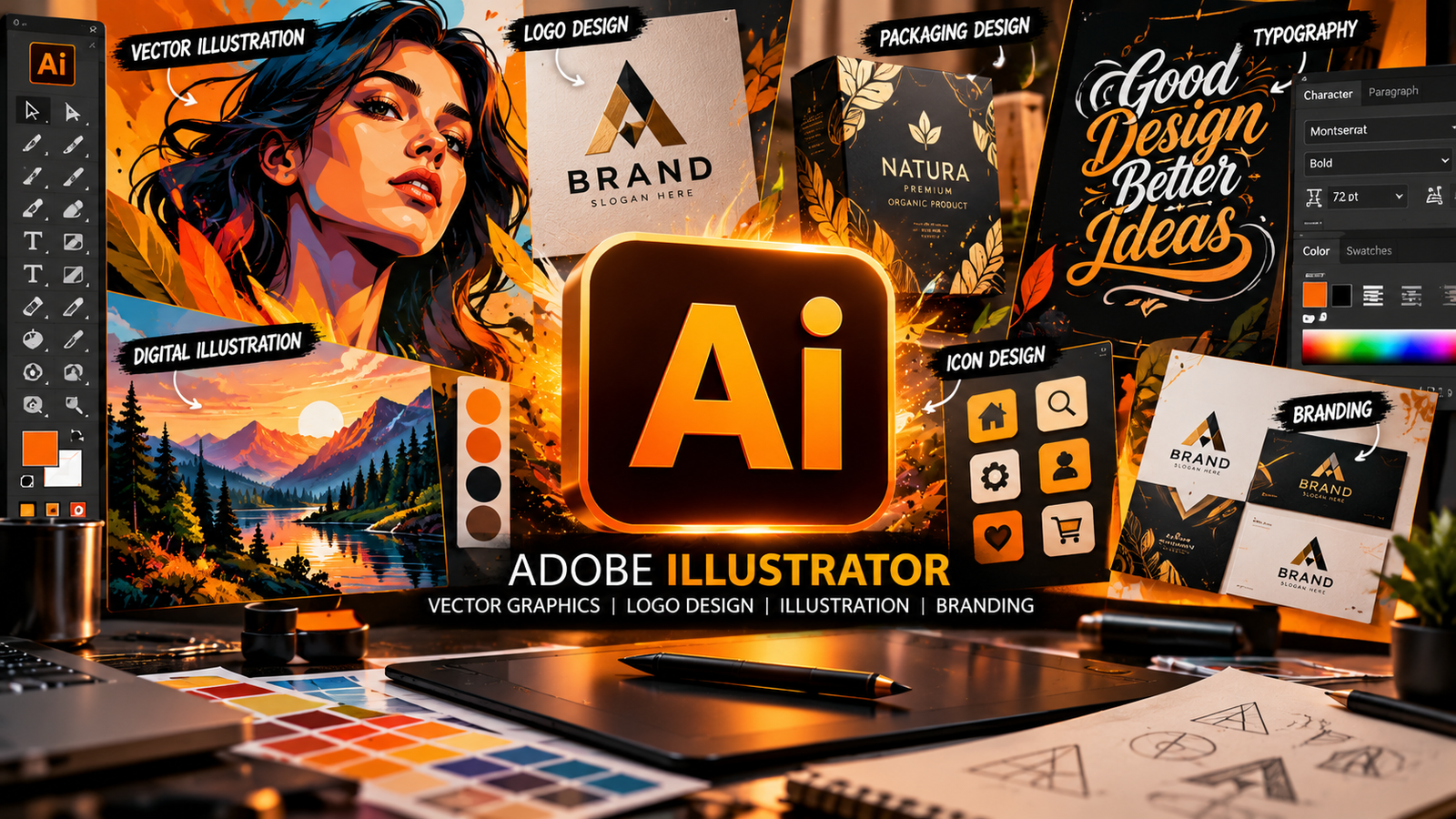
Adobe Illustrator is a professional graphic design application developed by Adobe. Illustrator is widely used for creating vector graphics, logos, icons, illustrations, typography, brand identities, packaging designs, posters, infographics, and many other visual assets. Unlike raster-based applications that primarily work with pixels, Illustrator uses mathematical paths, points, curves, and shapes to create vector artwork. This allows designs to be resized without losing their sharpness, making Illustrator especially useful for professional graphic design.
One of the most important advantages of Illustrator is its ability to create scalable graphics. For example, a logo created in Illustrator can be used on a small business card, a website, a large billboard, or product packaging while maintaining clean edges. This flexibility makes Illustrator an essential tool for designers who work with brand identities and commercial graphics.
Illustrator is used by graphic designers, digital artists, advertising agencies, marketing professionals, illustrators, print designers, and businesses. A designer can use Illustrator to create a complete brand identity, including logos, business cards, social media graphics, promotional materials, and packaging elements. The same software can also be used to create detailed vector illustrations, character artwork, icons, diagrams, and decorative patterns.
Another reason Illustrator is important is its precision. Designers can control the position of points, the shape of curves, the thickness of strokes, the alignment of objects, and the relationships between different elements. These controls help create clean and consistent designs that are suitable for both digital platforms and print production.
Illustrator also supports different creative workflows. A designer might sketch an idea on paper, recreate it using vector paths in Illustrator, apply colors and typography, and export the finished artwork for a website or printing service. Illustrator can also work alongside other creative applications. For example, designers may create vector illustrations in Illustrator, edit photographs in Photoshop, and animate graphics in After Effects.
For beginners, Illustrator may initially appear complicated because it contains numerous tools, panels, menus, and settings. However, the fundamentals are manageable when learned step by step. Understanding the Pen Tool, Selection Tool, Shape Tools, layers, colors, and paths provides a strong foundation for more advanced work.
Learning Illustrator can become a valuable skill for anyone interested in graphic design, branding, digital illustration, advertising, or freelancing. The software does not replace creativity or design knowledge, but it provides the tools necessary to turn creative ideas into polished, professional vector artwork.
2. Understanding the Illustrator Interface
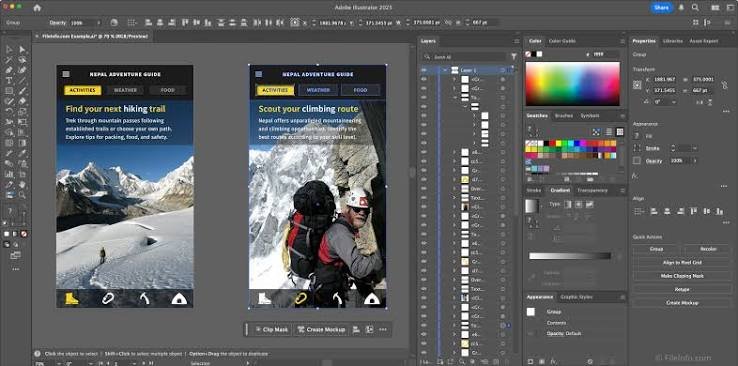
Understanding the Illustrator interface is one of the first steps toward becoming comfortable with the software. The interface contains several important areas, including the toolbar, document workspace, artboards, Properties panel, Layers panel, and various menus. Each area supports a different part of the design process.
The toolbar contains the tools used to create, select, modify, and arrange artwork. Some of the most frequently used Illustrator tools include the Selection Tool, Direct Selection Tool, Pen Tool, Curvature Tool, Shape Tools, Type Tool, Eyedropper Tool, Paintbrush Tool, and Zoom Tool. Learning the purpose of these tools makes everyday design tasks much easier.
The artboard represents the working area where the design is created. An Illustrator document can contain multiple artboards, allowing designers to develop several related designs within one file. For example, a brand identity project might include separate artboards for a logo, business card, social media graphic, and promotional banner.
The Properties panel provides controls relevant to the currently selected object or tool. When a shape is selected, the panel may display options for its dimensions, position, fill, stroke, and other appearance settings. When text is selected, typography-related controls become available. This context-sensitive panel helps designers access common settings without searching through multiple menus.
The Layers panel allows designers to organize objects into separate layers and groups. A complex Illustrator document may contain many shapes, text elements, illustrations, and decorative details. Using meaningful layer names and grouping related objects makes the document easier to edit and manage.
The Color and Swatches panels are useful for maintaining consistent colors. Designers can create custom colors, save frequently used swatches, and apply the same color values across multiple elements. Consistent colors are particularly important when creating brand identities or a series of related graphics.
The Align panel helps position objects precisely. It can align objects horizontally or vertically, distribute spacing evenly, and arrange elements relative to other objects or the artboard. Alignment is important because even attractive graphics can appear unprofessional when their spacing and positioning are inconsistent.
Illustrator also includes panels for typography, gradients, transparency, strokes, and other design properties. Beginners do not need to master every panel immediately. Instead, they should learn the tools and panels that support their current project.
A good starting exercise is to create a new Illustrator document, draw a few shapes, add text, apply colors, and arrange the objects using the Align panel. This simple activity introduces several important interface features without overwhelming the learner.
As projects become more complex, workspace organization becomes increasingly important. Keeping frequently used panels accessible, naming layers clearly, and maintaining an organized document can improve efficiency and make future edits easier.
3. Essential Illustrator Tools Every Beginner Should Learn
Illustrator contains many tools, but beginners can start by learning a small group of essential features. Practicing these tools through simple projects helps develop confidence and provides the foundation for more advanced vector design.
The Selection Tool is used to select entire objects and move, resize, rotate, or arrange them. It is one of the most frequently used tools in Illustrator because almost every design project involves selecting and positioning objects.
The Direct Selection Tool allows users to select and modify individual anchor points and path segments. This provides more precise control over shapes. For example, a designer can adjust specific points on a custom shape without moving the entire object.
The Pen Tool is one of the most important tools in Illustrator. It allows designers to create paths by placing anchor points and adjusting direction handles. Straight paths can be created with simple point placement, while curved paths require control over the direction and smoothness of the curves. The Pen Tool is especially useful for logos, custom illustrations, icons, and precise outlines.
The Curvature Tool offers another way to create and adjust curved paths. It can be easier for beginners who find the Pen Tool challenging because it provides a more direct approach to shaping curves.
The Shape Tools allow users to create rectangles, ellipses, polygons, stars, and other geometric objects. These basic shapes can be combined to create icons, illustrations, diagrams, and decorative graphics. For example, a simple character can be constructed from circles, rectangles, and custom paths.
The Type Tool is used to add text to an Illustrator document. Typography is a major part of graphic design, and Illustrator provides controls for font selection, size, spacing, alignment, and other text properties. Designers can create headings, logos, labels, packaging text, and promotional graphics.
The Eyedropper Tool samples appearance attributes from existing artwork. It can help designers apply consistent colors and styling without repeatedly entering values manually.
The Shape Builder Tool allows users to combine or remove overlapping areas of shapes. This is useful when constructing complex illustrations from simpler objects. Instead of drawing every part from scratch, designers can combine basic shapes into a new form.
The Pathfinder panel provides additional operations for combining and modifying shapes. Depending on the selected operation, objects can be united, divided, intersected, or used to subtract areas from one another.
The Gradient Tool creates smooth transitions between colors. Gradients can add depth, visual interest, and dimension to vector artwork. They are commonly used in illustrations, backgrounds, icons, and promotional designs.
The Paintbrush Tool creates freehand paths, while the Blob Brush Tool can create filled shapes through brush-based drawing. These tools can be useful for expressive illustration styles and more organic artwork.
The Zoom and Hand tools help users navigate the document. Zooming in supports detailed editing, while zooming out provides a view of the overall composition.
The best way to learn Illustrator tools is through practice. Start by creating geometric shapes, then move to simple icons, custom lettering, and small illustrations. As these tasks become easier, more complicated vector artwork will feel much more manageable.
4. Illustrator Paths, Anchor Points, Layers and Colors
Paths are the foundation of vector artwork in Illustrator. A path consists of anchor points connected by straight or curved segments. These paths define the outlines of shapes and can be used to create almost any vector design, from simple icons to detailed illustrations.
Anchor points determine where a path begins, ends, or changes direction. By adjusting their positions, designers can modify the shape of an object. Curved segments use direction handles to control how the curve flows between points. Learning how to manage anchor points and handles is essential for producing clean vector artwork.
The Pen Tool provides precise control over paths, while the Direct Selection Tool allows individual points to be adjusted after a path has been created. Designers can refine shapes by moving anchor points, changing curves, and simplifying unnecessary points. Using fewer, well-placed anchor points often produces smoother results than creating paths with too many points.
Fills and strokes are another important part of Illustrator. A fill determines the color or appearance inside a shape, while a stroke controls the outline. Designers can adjust stroke color, thickness, alignment, and other available settings to achieve the desired appearance.
Layers help organize artwork into manageable sections. For example, an illustration might have separate layers for the background, main character, foreground objects, shadows, and decorative elements. Keeping these components separate makes editing easier and reduces the risk of accidentally modifying unrelated artwork.
Groups serve a similar purpose by allowing multiple objects to be handled as a unit. Grouping related shapes can make it easier to move or resize complex designs. However, layers and groups should be named and organized carefully so that the document remains understandable.
Color plays an important role in every Illustrator project. Designers need to consider how colors work together, how they communicate a brand’s personality, and how readable the final design will be. A limited, consistent palette often creates a more professional result than using too many unrelated colors.
Illustrator provides several color systems and controls. RGB is generally used for digital displays, while CMYK is commonly used for many print workflows. The appropriate color mode depends on the final destination of the artwork and the requirements of the printer or platform.
Swatches allow designers to save colors for repeated use. Instead of selecting a slightly different shade each time, a designer can reuse the same saved colors throughout a project. This is particularly useful for brand identity systems that require consistent color application.
Gradients can introduce smooth color transitions into vector artwork. Linear gradients transition along a direction, while radial gradients transition outward from a central point. Depending on the artwork and available settings, gradients can create depth, highlights, shadows, and more decorative effects.
Transparency and blending options can also be used to create layered visual effects. Designers can adjust the opacity of objects and experiment with blending modes to produce different interactions between overlapping elements.
Mastering paths, anchor points, layers, and colors gives beginners greater control over Illustrator. These concepts appear in nearly every project, so practicing them early makes more advanced work easier to understand.
5. Illustrator for Logo Design, Branding and Typography
Logo design is one of the most popular uses of Illustrator. A logo should be recognizable, appropriate for the brand, and flexible enough to work across different sizes and platforms. Illustrator is well suited to logo creation because vector artwork can be scaled without losing its sharpness.
A logo project usually begins with research and concept development. Designers consider the brand’s audience, values, personality, industry, and visual identity. They may sketch several concepts before building the strongest ideas in Illustrator.
Simple geometric shapes can be used to construct symbols, while the Pen Tool allows more customized designs. The Shape Builder Tool and Pathfinder operations can help combine or subtract shapes to create distinctive forms.
Typography is equally important in logo design. Some logos use only a wordmark, while others combine a symbol with the brand name. Designers must consider font style, spacing, proportions, legibility, and how the typography works alongside the symbol.
A professional logo should also work in different contexts. It may appear on a website, business card, packaging, advertisement, social media profile, or large printed sign. Testing the logo at different sizes helps reveal whether its details remain clear.
Illustrator is also useful for creating broader brand identity systems. These systems may include color palettes, typography rules, icons, patterns, stationery, packaging elements, and promotional graphics. Using reusable colors and vector assets helps maintain consistency across different materials.
Typography is not limited to logos. Illustrator can also be used to create posters, advertisements, banners, editorial graphics, and promotional materials. Text can be arranged along paths, converted into shapes for certain design purposes, and combined with custom vector elements.
However, text should generally remain editable until the design is finalized. Converting text to outlines can help preserve its appearance when the required font is unavailable, but outlined text is more difficult to edit as ordinary text. Designers should keep an editable copy whenever possible.
Illustrator also supports text wrapping, paragraph formatting, character spacing, and other typography controls. These features help create layouts that balance text and imagery effectively.
For poster design, designers often combine bold headlines, supporting text, vector illustrations, and a carefully selected color palette. Hierarchy is important because viewers should be able to identify the main message quickly.
Branding projects also benefit from consistent spacing and alignment. Repeated visual rules help create a recognizable identity and make a collection of designs feel connected.
For anyone interested in freelancing, Illustrator branding projects can become valuable portfolio pieces. A portfolio might include a logo, business card, brand color palette, social media graphic, and packaging concept for a fictional business. Showing how these elements work together demonstrates more than technical ability; it also demonstrates design thinking.
6. Illustrator for Digital Illustration, Icons and Marketing Design
Illustrator is widely used for creating digital illustrations. Vector illustration involves constructing artwork from paths, shapes, colors, and other vector elements rather than relying exclusively on pixels. This makes Illustrator suitable for flat illustrations, character artwork, editorial graphics, diagrams, icons, and many types of commercial artwork.
Flat illustration is a popular style because it uses simple shapes, clear outlines, and controlled color palettes. Designers can create people, buildings, products, objects, and scenes using geometric shapes and custom paths. This style is often used in websites, educational materials, presentations, and marketing campaigns.
Character illustration is another possible application. Designers can build characters from separate shapes and paths, then refine the proportions, facial features, clothing, and colors. Layers and groups help keep different body parts and details organized during editing.
Icon design is especially well suited to Illustrator. Icons need to be clear, consistent, and recognizable at relatively small sizes. Designers can use a common grid, consistent stroke widths, and repeated geometric principles to create a coherent icon set.
Infographics are another useful application. Illustrator can be used to create diagrams, timelines, charts, maps, and explanatory graphics. These designs help communicate information through visual hierarchy, labels, symbols, and organized layouts.
Illustrator is also valuable for social media marketing. Designers can create promotional posts, campaign graphics, event announcements, banners, advertisements, and supporting brand visuals. Vector assets can be resized and adapted to different dimensions while retaining their sharp edges.
For example, a business might require a square promotional graphic, a vertical story design, and a wide banner for a website. A designer can adapt vector elements to each format while maintaining a consistent visual identity.
Illustrator can also be used to create packaging concepts. Product packaging often combines logos, text, illustrations, icons, patterns, and information panels. Vector graphics help maintain clean edges and allow elements to be adjusted to fit different package dimensions.
Another application is merchandise design. Designers can create graphics for T-shirts, stickers, labels, posters, and other printed products. The artwork must be prepared according to the requirements of the production process, including suitable colors, dimensions, and file formats.
Illustrator is also useful for creating maps, technical diagrams, and presentation visuals. Its precise paths and alignment tools help create graphics that are clear and organized.
When designing for marketing, the artwork should always support the intended message. Strong visual hierarchy, readable typography, consistent branding, and suitable colors are often more important than decorative complexity.
A good Illustrator design does not need dozens of effects or complicated shapes. Sometimes a few carefully arranged objects, a clear headline, and a consistent color palette can communicate an idea more effectively than a crowded composition.
7. Advanced Illustrator Techniques and Professional Workflows
Once the basics are understood, designers can explore advanced Illustrator techniques that provide greater flexibility and control. These techniques can help create more sophisticated artwork and improve efficiency when working on complex projects.
Clipping masks allow designers to show only the portions of artwork that fall within a defined shape. For example, an image or pattern can be placed inside a circle, custom shape, or letterform. Clipping masks are useful for layouts, decorative effects, and complex compositions.
Opacity masks provide additional control over the visibility of artwork. They can be used to create gradual transparency and more complex visual effects. These techniques can help designers blend elements together without permanently deleting parts of the artwork.
The Appearance panel allows multiple fills, strokes, and effects to be applied to a single object. This can create complex visual styles while keeping the underlying object editable. It is useful for decorative typography, icons, shapes, and other designs that require layered appearances.
Graphic Styles can store combinations of appearance settings so they can be reused on other objects. This can improve consistency and save time when creating a series of related elements.
The Width Tool allows designers to vary the thickness of a stroke along a path. This is useful for creating expressive lines, custom lettering, decorative shapes, and illustrations with more natural variation.
The Blend Tool can generate intermediate objects between two selected shapes or paths. It can be used for repeated patterns, color transitions, decorative elements, and certain types of dimensional illustrations.
Pattern creation is another useful technique. Illustrator can create repeating patterns from shapes, symbols, and other vector objects. These patterns can be used in packaging, textiles, backgrounds, branding, and decorative artwork.
The Image Trace feature can convert suitable raster images into editable vector artwork. It can be useful for converting simple artwork or high-contrast graphics into paths, although the results may require cleanup. Photographs and complicated images can produce many unnecessary points, so Image Trace should be used selectively.
Symbols and reusable graphic elements can help improve efficiency. When the same graphic appears repeatedly, using reusable assets can make updates easier and reduce unnecessary duplication.
Illustrator also supports perspective-related drawing features and 3D-inspired effects in certain workflows. These can be used to create dimensional illustrations, packaging mockups, and stylized graphic elements. The best approach depends on the desired appearance and the capabilities of the installed Illustrator version.
Professional workflows also require attention to file organization. Layers should be named clearly, unused objects should be removed where appropriate, and related elements should be grouped. Keeping an editable master file helps preserve the ability to make future changes.
Exporting is another important skill. Illustrator artwork may be saved in formats such as AI, SVG, PDF, PNG, and JPEG, depending on the purpose. AI files preserve the native Illustrator document, SVG is commonly used for scalable web graphics, PDF is widely used for document sharing and print workflows, and PNG or JPEG may be appropriate for raster images.
The correct format depends on the destination. A logo intended for a website may require SVG or PNG, while a print project may require a PDF that meets the printer’s specifications. Designers should confirm technical requirements before delivering final files.
Advanced Illustrator skills develop through repeated practice. Learning one technique at a time and applying it to a real design project is generally more useful than attempting to master every advanced feature simultaneously.
8. How to Learn Illustrator and Build a Professional Portfolio
Learning Illustrator requires a combination of technical practice, visual observation, and design thinking. Beginners should start with simple tasks and gradually progress to more complex projects. This approach makes it easier to understand how individual tools work and how they contribute to a complete design.
A useful first project is to create a collection of basic geometric shapes. Practice changing their size, position, fill, stroke, and alignment. This introduces the Selection Tool, Shape Tools, color controls, and Align panel.
The next step is to practice the Pen Tool. Begin by drawing simple straight paths, then move to curves and more complicated outlines. The goal is to develop control over anchor points and handles rather than attempting a detailed illustration immediately.
After learning basic shapes and paths, create a simple icon set. Using consistent sizes, stroke widths, and alignment helps develop precision and visual consistency.
A logo design project is another valuable exercise. Choose a fictional brand, research its audience, sketch several ideas, and recreate the strongest concept in Illustrator. Then test the design at different sizes and on different backgrounds.
Poster design provides an opportunity to practice typography, color, layout, and illustration together. Create a clear headline, supporting text, a main graphic, and a balanced composition. This type of project can also demonstrate how Illustrator supports marketing and advertising design.
Another useful project is a set of social media graphics. Create several related designs using the same colors, typography, and visual style. This demonstrates the ability to maintain brand consistency across different formats.
Beginners can also practice vector illustration by recreating simple objects, landscapes, characters, or product graphics. Rather than copying every tiny detail, focus on understanding how shapes, paths, colors, and layers combine to form the final artwork.
Studying existing designs can improve visual judgment. Examine how professional designers use spacing, contrast, typography, proportion, and color. Try recreating a design for learning purposes, but respect copyright and avoid presenting another designer’s work as your own original commercial work.
Once several projects have been completed, organize them into a portfolio. A strong Illustrator portfolio should show variety and quality rather than simply containing a large number of similar designs.
A portfolio might include a logo and branding project, a poster, a vector illustration, an icon set, a packaging concept, a social media campaign, and an infographic. Each project should demonstrate a different aspect of the designer’s skills.
Before publishing a portfolio piece, review the artwork carefully. Check for uneven spacing, unnecessary anchor points, inconsistent colors, poor alignment, spelling mistakes, and technical problems. Export the design in suitable formats and keep an editable source file.
Illustrator can also support freelance work. Potential services include logo design, vector illustration, icon creation, poster design, packaging graphics, social media visuals, infographic design, and brand identity development. The projects available to a designer will depend on their skills, experience, portfolio, and client requirements.
It is also useful to understand the differences between Illustrator and other creative applications. Illustrator is particularly suited to scalable vector artwork, while Photoshop is primarily focused on raster image editing and photo manipulation. After Effects specializes in motion graphics and animation. These applications can complement one another in a broader creative workflow.
There is no fixed timeline for mastering Illustrator. Beginners can learn basic tools relatively quickly, but professional-level work requires continued practice and feedback. Developing strong design judgment takes time because it involves more than knowing how to use software.
The most effective learning strategy is to build projects regularly. Create icons, practice typography, design logos, experiment with colors, develop illustrations, and prepare artwork for different platforms. Every project offers an opportunity to improve technical accuracy and creative thinking.
Final Thoughts
Adobe Illustrator is a powerful application for vector graphics, logo design, branding, illustration, typography, and professional graphic design. Its ability to create scalable artwork makes it useful for projects ranging from small digital icons to large-format printed graphics.
Learning Illustrator may feel challenging at first, but the fundamentals become manageable when practiced in a logical order. Begin with the interface, selection tools, shapes, paths, anchor points, colors, and layers. Then progress to logo design, vector illustration, typography, masking, advanced appearances, and professional export workflows.
The most important part of learning Illustrator is applying the tools to real projects. Create designs, study visual references, practice regularly, and develop a portfolio that demonstrates your abilities.
Ultimately, Illustrator is not only about drawing shapes or using the Pen Tool. Professional design requires understanding composition, readability, visual hierarchy, color, spacing, and the needs of the intended audience.
When technical knowledge is combined with creativity and design principles, Illustrator becomes a valuable tool for producing polished graphics for businesses, websites, marketing campaigns, print materials, and digital platforms.
FOR MORE DETAILS WATCH THESE VIDEOS👇👇
Table of Contents