
What Is After Effects and Why Is It Important?
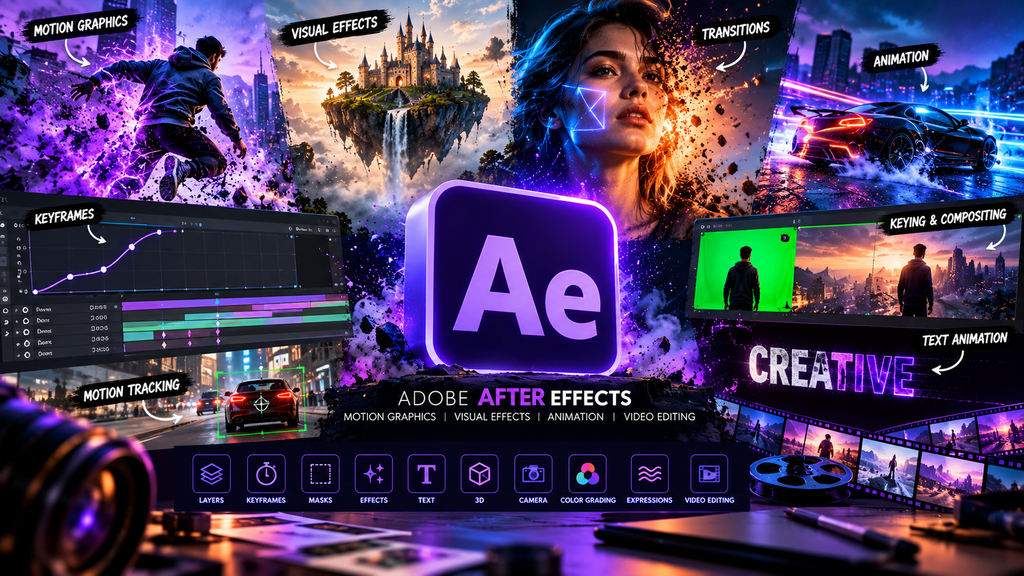
Adobe After Effects is one of the most widely used applications for creating motion graphics, visual effects, animations, compositing, titles, transitions, and other forms of creative video content. After Effects is developed by Adobe and is commonly used by motion designers, video editors, filmmakers, content creators, advertisers, YouTubers, social media creators, and visual-effects artists. While traditional video editing focuses mainly on arranging and cutting video clips, After Effects provides much greater control over individual visual elements and allows designers to animate almost every part of a composition.
After Effects can be used to turn static graphics into animated designs. A simple logo can be animated with movement, rotation, scaling, opacity, and other properties. Text can appear letter by letter, move across the screen, change color, or react to other elements. Images can be transformed into animated scenes, and video footage can be combined with effects, masks, particles, lighting, and other visual elements. This flexibility makes After Effects an important tool for modern digital content creation.
One of the biggest advantages of After Effects is its ability to create motion graphics. Motion graphics combine graphic design and animation to communicate information visually. Businesses use motion graphics for advertisements, product promotions, presentations, explainer videos, social media campaigns, and brand videos. A designer using After Effects can create animated logos, promotional titles, infographic animations, kinetic typography, lower thirds, transitions, and many other forms of animated content.
After Effects is also widely used for visual effects. Visual effects can change the appearance of footage or create elements that were not physically present when the video was recorded. Green-screen compositing, screen replacement, object removal, tracking, lighting effects, explosions, smoke, particles, and futuristic effects can all be created or enhanced using After Effects. This makes After Effects valuable for both professional productions and smaller creative projects.
Another important feature of After Effects is compositing. Compositing means combining different visual elements into one final scene. For example, a designer could combine a person recorded in front of a green screen with a city background, animated lighting, smoke, particles, and additional graphics. After Effects provides tools that allow each element to be positioned, animated, masked, adjusted, and blended into the final composition.
After Effects is also useful for social media content. Modern platforms rely heavily on short-form video, and creators are constantly looking for ways to make their content more engaging. After Effects can be used to create Instagram Reels, YouTube Shorts, advertisements, promotional videos, animated posts, title sequences, and other digital content. Even simple animations can make a video look more professional when they are designed carefully.
Learning After Effects can therefore become a valuable creative skill. Beginners may initially find the interface complicated because After Effects contains many panels, controls, properties, timelines, effects, and animation features. However, learning the fundamentals step by step makes the software much easier to understand. Once the basic workflow becomes familiar, users can gradually move toward advanced animation and visual-effects techniques.
Understanding the After Effects Interface
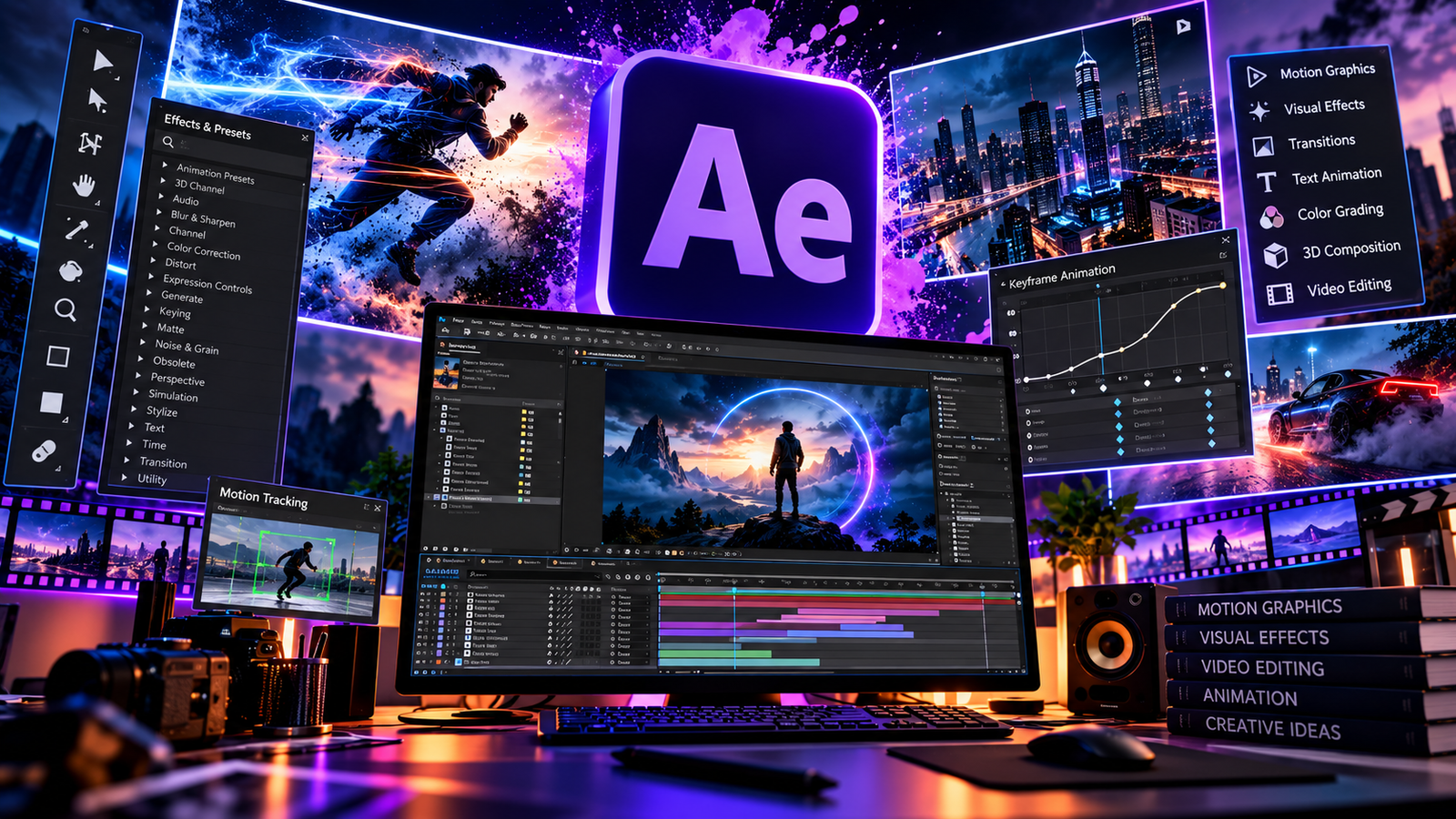
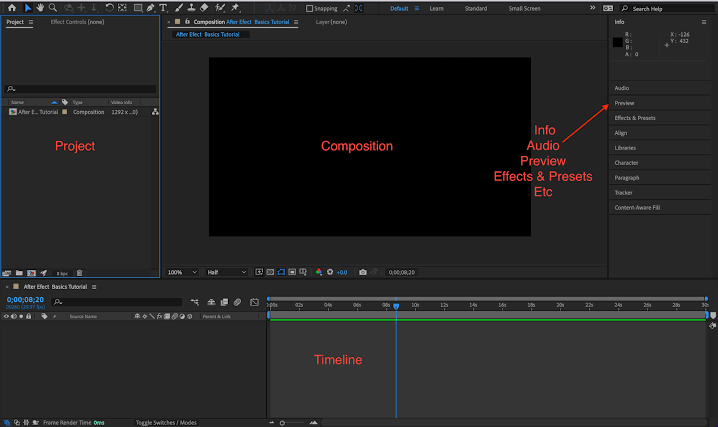
The After Effects interface contains several important areas that work together to create animations and visual compositions. Understanding the interface is one of the first steps toward becoming comfortable with After Effects. Instead of trying to learn every button immediately, beginners should first understand the purpose of the main panels and how they interact with one another.
The Project panel is where imported files and project assets are organized. Images, videos, audio files, compositions, graphics, and other assets can be stored inside the project. Keeping assets organized becomes increasingly important as an After Effects project becomes larger. Designers can create folders for footage, images, audio, compositions, graphics, and other resources.
The Composition panel is the main visual workspace in After Effects. It displays the current composition and allows users to see how their animation is developing. When an object is moved, scaled, rotated, or animated, the result can be viewed directly in the Composition panel. This makes it one of the most frequently used areas of After Effects.
The Timeline panel is another essential part of After Effects. The Timeline shows layers and their positions over time. Unlike a simple static image editor, After Effects works with time, which means elements can change throughout a video. A layer may appear at one moment, move across the screen, disappear later, or change its properties during the animation.
The Timeline contains the keyframes that control animation. Keyframes define specific values at specific points in time. For example, a designer could place a keyframe at the beginning of a composition with an object positioned on the left side of the screen and another keyframe several seconds later with the object positioned on the right side. After Effects can then create the movement between those two points.
The Effects and Presets panel provides access to many effects and animation presets. After Effects includes effects for color correction, blur, distortion, stylization, keying, noise, particles, transitions, and many other purposes. Presets can also speed up the workflow by providing ready-made animation settings that can be customized.
The Tools panel contains common tools used for creating and manipulating elements. Selection tools can be used to select objects, while shape tools can create geometric elements. The Pen Tool is useful for creating paths and masks, while the Type Tool allows users to create text. Other tools support camera work, movement, zooming, and other editing tasks.
The Character and Paragraph panels are especially useful when working with text. Typography is an important part of motion graphics, and After Effects provides controls for font selection, size, spacing, alignment, color, and other properties. Designers can combine these controls with animation to create professional kinetic typography.
Understanding how these panels work together is more important than memorizing every option. A typical After Effects workflow might involve importing assets through the Project panel, placing them inside a composition, arranging layers in the Timeline, adjusting properties, applying effects, and previewing the result in the Composition panel.
As projects become more complicated, organization becomes increasingly important. Naming layers, creating folders, using pre-compositions, and keeping assets organized can make After Effects projects much easier to manage. Good organization also makes it easier to return to an old project and make changes later.
Essential After Effects Tools for Beginners
After Effects contains a large number of tools, but beginners do not need to master everything at once. A small group of essential tools can provide a strong foundation for learning animation and motion graphics. Understanding what each tool does and practicing it through small projects is one of the fastest ways to become comfortable with After Effects.
The Selection Tool is used to select and manipulate layers and objects. It can be used to move elements around the composition and select individual layers for editing. Although it is one of the simplest tools in After Effects, it is used constantly during the design process.
The Hand Tool allows users to move around the Composition panel without changing the position of the actual objects. This becomes useful when working on large compositions or zooming into detailed areas.
The Zoom Tool allows users to change the viewing scale of the composition. Zooming in can help with detailed work, while zooming out can provide a better understanding of the complete composition.
The Shape Tools are useful for creating rectangles, ellipses, polygons, and other geometric elements. Shapes can become animated backgrounds, interface elements, icons, buttons, decorative graphics, or components of larger motion-graphics designs.
The Pen Tool is one of the most powerful tools in After Effects. It can be used to create custom paths and masks. Masks can control which portions of a layer are visible, making them extremely useful for transitions, reveals, object isolation, and visual effects.
The Type Tool allows users to add text to compositions. Text animation is one of the most common applications of After Effects. Designers can animate position, scale, rotation, opacity, color, tracking, and other text properties to create dynamic titles and promotional graphics.
The Brush Tool can be used for painting and creating certain types of visual effects. It can also be useful for rotoscoping and other creative workflows. With the right settings, brush-based techniques can add an artistic element to an After Effects composition.
The Clone Stamp Tool can help remove or duplicate visual information in footage. It can be useful when cleaning small areas of video or creating specific visual effects.
The Puppet tools allow users to create animation by defining pins on an object or character. These pins can be moved to create deformation and movement. Puppet animation can be useful for simple character animation, flexible objects, and creative motion effects.
The Camera Tool is important when working with three-dimensional compositions. After Effects allows designers to create 3D layers and move a virtual camera through a scene. This can create depth and cinematic movement.
The Pan Behind Tool is useful for adjusting the relationship between a layer and its anchor point. Understanding the anchor point is particularly important because many animation properties depend on where the anchor point is located.
Learning these tools through actual projects is more effective than simply memorizing their names. A beginner could start by creating a simple animated title, then progress to a logo animation, followed by a promotional video and eventually a complete motion-graphics composition.
Layers, Keyframes and Animation Basics
Layers are fundamental to the After Effects workflow. Every element placed inside a composition generally exists as a layer, and each layer can have its own position, scale, rotation, opacity, effects, and animation properties. Understanding layers is therefore one of the most important skills for anyone learning After Effects.
A layer might contain a photograph, video clip, shape, text element, solid color, audio file, or other visual asset. Layers can be arranged above or below one another, allowing designers to create complex compositions from multiple elements. The order of layers determines which elements appear in front of or behind other elements.
After Effects provides several transform properties that can be animated. These include Position, Scale, Rotation, Anchor Point, and Opacity. These properties form the foundation of many basic animations.
Position controls where an element appears in the composition. By creating two position keyframes at different times, an object can move from one location to another. This simple technique can create everything from basic slide-in animations to complex motion paths.
Scale controls the size of an element. Animating scale can create zoom effects, growing objects, shrinking objects, and attention-grabbing transitions.
Rotation controls the angle of an object. Rotation animation can be used for spinning logos, rotating icons, turning objects, and creating dynamic transitions.
Opacity controls transparency. Animating opacity allows elements to fade in or fade out. Combining opacity animation with movement can create smooth entrance and exit animations.
The Anchor Point is another important property. It determines the point around which an object rotates or scales. Moving the anchor point can dramatically change the behavior of an animation.
Keyframes tell After Effects when a property should have a particular value. When two or more keyframes contain different values, After Effects calculates the change between them. This creates the basic movement seen in many animations.
However, simply creating keyframes does not always produce professional-looking motion. Beginners often create animations that appear robotic or mechanical because the movement occurs at a constant speed. After Effects provides tools such as Easy Ease and the Graph Editor to create smoother and more natural movement.
Easy Ease changes the way an animation accelerates and decelerates. Instead of moving at exactly the same speed throughout the animation, the object can gradually accelerate, move more quickly, and then slow down before reaching its destination.
The Graph Editor provides even greater control over animation. Designers can adjust the speed and timing of movements to create precise motion. Professional motion graphics often rely heavily on timing and easing because these details can make the difference between an amateur-looking animation and a polished one.
After Effects also supports parenting. Parenting allows one layer to follow another layer’s transformations. For example, a graphic element can be attached to another object so that when the main object moves, the connected element moves with it.
Pre-compositions are another important concept. A pre-composition allows several layers to be grouped into a separate composition. This can simplify complicated projects and make it easier to apply effects or animations to multiple elements at once.
Learning layers and keyframes provides the foundation for almost every After Effects project. Once these concepts become comfortable, users can begin exploring masks, expressions, effects, 3D layers, motion tracking, and more advanced animation systems.
After Effects for Motion Graphics and Visual Effects
Motion graphics are one of the main reasons designers choose After Effects. Motion graphics combine graphic design, animation, typography, imagery, sound, and visual effects to communicate information or create a specific mood. After Effects provides a flexible environment for building these types of projects.
Animated logos are a common example. A static logo can be transformed into a short animation where individual elements appear, move, rotate, scale, or change opacity. Businesses can use animated logos at the beginning or end of videos, presentations, advertisements, and social media content.
Kinetic typography is another popular application. Kinetic typography uses animated text to communicate information visually. Words can appear in sequence, move with music, scale dramatically, or respond to the rhythm of a video. After Effects provides many controls that make this type of animation possible.
Motion graphics can also be used to create lower thirds. Lower thirds are graphic elements that appear near the bottom of a video to identify a person, location, topic, or other information. After Effects can be used to create animated lower-third templates with text, shapes, transitions, and branding.
Visual effects are another major area of After Effects. Effects can transform ordinary footage into something much more creative. Designers can add glowing lights, particles, smoke, energy effects, distortion, digital glitches, color effects, and other elements.
Green-screen compositing is a common visual-effects workflow. A subject recorded against a green background can be separated from the background using keying techniques and then placed into another environment. This technique is widely used in advertisements, music videos, films, educational content, and online videos.
Motion tracking allows After Effects to follow movement within footage. A tracked object can be used to attach text, graphics, effects, or other elements to moving subjects. For example, a designer could attach a label to a moving car or make graphics appear to follow a person’s movement.
Object tracking can also be combined with visual effects. If a camera moves through a scene, tracking information can help integrate digital elements into the footage more convincingly.
Rotoscoping is another important technique. It involves isolating a subject from the background by creating detailed masks or using specialized tools. Rotoscoping can be time-consuming, but it is useful when automatic selection or green-screen techniques are not sufficient.
After Effects can also create particle-based effects. Particles can represent dust, sparks, rain, snow, smoke, energy, stars, and other visual elements. These effects can add atmosphere and depth to a composition.
Color correction and color grading also play an important role in visual effects. When multiple visual elements are combined, their colors and lighting need to work together. Adjusting contrast, saturation, exposure, and color balance can help make separate elements appear as though they belong to the same scene.
The combination of motion graphics and visual effects makes After Effects especially powerful. A designer can start with ordinary footage and gradually transform it using animation, compositing, typography, lighting, particles, and other techniques.
After Effects for Video Editing and Social Media
Although After Effects is not primarily designed to replace a complete video-editing application, it can play an important role in video production. After Effects is particularly useful when a video requires animation, visual effects, motion graphics, advanced titles, transitions, or compositing.
Social media creators frequently use After Effects to make their videos more visually engaging. Short-form platforms require content that captures attention quickly, and animated graphics can help create stronger visual impact.
Text animation is especially useful for social media videos. Important words can appear at specific moments, move across the screen, scale into view, or react to the video’s rhythm. This can make educational videos, promotional content, advertisements, and entertainment videos more dynamic.
After Effects can also be used to create animated captions. Instead of displaying static subtitles, designers can animate individual words or phrases. This style of captioning is frequently used in short-form video content.
Transitions are another common application. After Effects can create custom transitions that go beyond basic cuts and fades. Shapes, masks, motion blur, camera movement, and other effects can be combined to create unique transitions.
YouTube creators can use After Effects to create intros, outros, title animations, subscribe animations, lower thirds, logo reveals, and other channel graphics. These elements can help establish a recognizable visual identity.
After Effects is also useful for advertisements. A product can be placed into a visually attractive composition with animated text, graphics, lighting, and effects. Promotional videos can therefore communicate product information while maintaining a strong visual style.
For Instagram and other social platforms, designers can create vertical compositions designed specifically for mobile screens. Important content can be positioned in areas that remain visible and readable when viewed on a phone.
After Effects can also be used for animated infographics. Numbers, charts, icons, diagrams, and statistics can be animated to make information easier to understand. This is particularly useful for educational and business content.
Another useful application is music visualization. Audio-reactive or manually animated graphics can respond visually to music. Designers can combine typography, shapes, particles, and color effects to create engaging music videos and promotional content.
However, good After Effects design is not simply about adding as many effects as possible. Professional motion graphics require timing, hierarchy, readability, and visual consistency. An animation should support the message rather than distract from it.
Advanced After Effects Techniques
Once the fundamentals of After Effects become comfortable, users can explore advanced techniques that provide greater control over animation and visual effects. Advanced After Effects work often combines several tools and techniques rather than relying on a single effect.
Expressions are one example. Expressions allow users to control properties through small pieces of code. They can automate repetitive animation and create relationships between different properties. Expressions can be useful for procedural animation, looping movements, automatic adjustments, and complex systems.
The Graph Editor is another important advanced feature. It allows precise control over the speed and value of animation. Motion designers can use the Graph Editor to create smooth acceleration, dramatic movement, elastic effects, and carefully controlled timing.
3D layers can introduce depth into After Effects compositions. Once layers are converted to 3D, they can be positioned in three-dimensional space and interacted with cameras and lights. This can create more cinematic compositions.
3D cameras allow designers to move through a scene rather than simply moving a flat composition. Camera movements can include zooming, panning, rotation, and movement through depth.
Lighting can also be introduced into 3D compositions. Lights can create highlights and shadows, adding depth and atmosphere to the scene. Combining 3D layers, cameras, and lighting can create sophisticated motion-graphics environments.
Motion blur is another important technique. When objects move quickly in real life, they often produce natural blur. Motion blur can make digital animation feel more realistic by visually communicating movement.
Masks can also be used for complex transitions and effects. A mask can reveal part of an image, hide unwanted areas, create transitions, or isolate objects. Multiple masks can be combined to create sophisticated visual effects.
Track mattes provide another way to control visibility. One layer can be used to determine which parts of another layer are visible. This is useful for text reveals, image transitions, shape-based animations, and creative compositions.
Pre-compositions become increasingly valuable in advanced projects. Large After Effects projects can contain hundreds of layers, and pre-compositions can help break complex projects into manageable sections.
Advanced compositing may combine footage, 3D layers, masks, tracking, color correction, particles, and lighting. The goal is usually to make multiple elements appear as though they belong to the same visual environment.
Optimization is also important when working on complex After Effects projects. High-resolution footage, many effects, large compositions, and 3D elements can require significant processing power. Using efficient workflows, organizing layers, managing previews, and optimizing assets can help improve performance.
Advanced After Effects skills are developed through practice. Rather than attempting to learn every feature simultaneously, creators should choose specific projects and learn the techniques required to complete them.
How to Learn After Effects and Build a Professional Portfolio
Learning After Effects requires both technical knowledge and creative practice. Watching tutorials can introduce new tools, but practical projects are what turn that knowledge into usable skills. Beginners should therefore create small projects and gradually increase the complexity.
A good starting project is a simple text animation. Create a composition, add a title, and animate its position, scale, rotation, or opacity. This teaches the fundamental relationship between layers, properties, keyframes, and time.
The next step could be an animated logo. A logo animation teaches timing, shape animation, position, scale, rotation, and transitions. It can also become a portfolio piece.
After learning basic animation, beginners can practice creating social media graphics. A short promotional animation can combine text, images, shapes, transitions, and sound. This provides experience with a workflow similar to real-world content creation.
Another useful project is a motion-graphics advertisement. Choose a fictional product and create a short promotional video. This can include product imagery, animated text, transitions, lighting, and a call to action.
Beginners can also practice visual effects. Simple projects such as glowing text, energy effects, particles, screen replacements, or object tracking can help develop technical skills.
Recreating existing motion graphics can also be an effective learning method. Instead of simply copying the final result, analyze how the animation works. Identify the layers, keyframes, timing, colors, typography, and effects. Then attempt to reproduce the movement in After Effects.
Once several projects have been completed, they can be organized into a professional portfolio. A strong After Effects portfolio should demonstrate different skills rather than showing many versions of the same animation.
A portfolio could contain animated logos, social media advertisements, kinetic typography, visual effects, transitions, product animations, title sequences, and motion-graphics compositions.
Before publishing a portfolio project, creators should check the animation carefully. Text should be readable, movement should feel intentional, colors should work together, and effects should support the concept.
Export quality also matters. A technically good After Effects project can look poor if it is exported incorrectly. Resolution, frame rate, compression, aspect ratio, and file format should be selected according to where the video will be used.
A professional portfolio should also explain the creator’s role in each project. If a project includes motion design, compositing, visual effects, editing, or sound design, these skills can be clearly identified.
Freelancers can use After Effects skills for many types of work. Potential projects include social media advertisements, promotional videos, animated logos, YouTube graphics, explainer videos, motion graphics, visual effects, product animations, and title sequences.
The most important part of learning After Effects is consistency. A person who practices regularly will gradually become more comfortable with animation principles, timing, composition, effects, and visual storytelling.
After Effects can initially feel complicated because it provides so many possibilities. However, learning the software step by step makes the process much more manageable. Start with layers and keyframes, practice simple animation, learn masks and effects, explore motion graphics, and then move toward advanced visual effects and 3D techniques.
Ultimately, After Effects is not just a software application for adding effects to videos. It is a creative environment for combining animation, graphic design, video, typography, sound, and visual storytelling. With consistent practice and a strong understanding of the fundamentals, After Effects can become an extremely valuable skill for anyone interested in motion graphics, video production, visual effects, digital marketing, content creation, or creative design.
for more details watch these videos👇👇
Table of Contents


[…] READ MORE […]